Webflow SEO Settings: Complete Configuration Guide
Topic:
Webflow
Reading time:
9
Key Takeaways
Webflow's SEO settings live in three places: site-level (Project Settings), page-level (SEO tab), and collection-level (CMS settings)
Site-level settings include global title formats, meta description defaults, sitemap, robots.txt, and 301 redirects
Page-level SEO covers title tags, meta descriptions, Open Graph tags, canonical URLs, and custom slugs
Collections need dynamic meta titles and descriptions templated from your CMS data
Image alt text, file naming, and lazy loading are crucial for image SEO and accessibility
Webflow's built-in SEO audit panel gives you Lighthouse-style feedback on each page
Custom code sections let you add schema markup, analytics, and advanced tracking
You just finished building your Webflow site. It looks beautiful. The animations are smooth. But now you're staring at the Project Settings and like...we good here with SEO?
If your website is built by a designer or someone who doesn't understand SEO optimization, then more than likely this area is just skipped, and when it comes to SEO configurations, actions aren't taken.
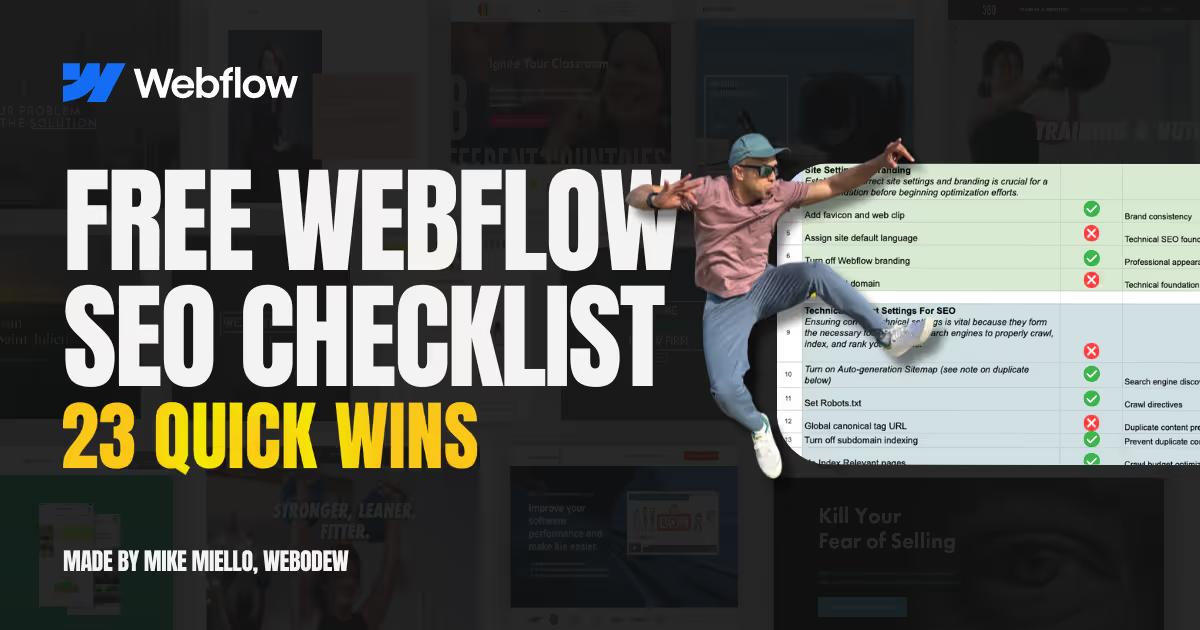
There's no need for this. In fact, I published a checklist for this exact reason to offer designers a Webflow checklist of SEO things to do when launching a site. Grab it and use it! But here's a breakdown of the areas you want to look at.
Free Webflow SEO checklist to help optimize your site
Site-Level SEO Settings (Project Settings)
This is where the big picture lives. Open your Project Settings and click the SEO tab. You're looking at settings that apply globally across your entire site.
Global Meta Title Format
Webflow lets you create a template for page titles. I love this feature because it ensures consistency without manual repetition. You'll see a format field that looks something like: [Page Name] | [Site Name]
Here's my recommendation: keep it clean and under 60 characters for the full title. For a site about Webflow SEO, something like [Page Name] | Webodew works great. The pipe symbol (|) is a solid separator. Easy for users to scan in search results.
Pro tip: this applies to pages that don't have a custom title. If you set individual page titles (which we'll cover), those override this template.
Default Meta Description
Set a fallback meta description here for any page that doesn't have one defined. Keep it under 155 characters.
Again — this is just the default. You'll customize per page. But having a solid fallback is huge for pages you might forget about.
Sitemap Settings
Webflow auto-generates your sitemap.xml. You don't need to do anything here usually, but you can customize it. I check the settings to make sure all my static pages are included and that I'm excluding things I don't want crawled (like staging pages or private content).
The beauty of Webflow's sitemap is it automatically updates when you publish pages. You don't have to regenerate it manually. Submit the sitemap to Google Search Console and Bing Webmaster Tools.
Robots.txt Configuration
This controls what search engines can and can't crawl on your site. By default, Webflow handles this well. But if you want to disallow certain areas — like an admin section or staging environment — you can customize the robots.txt here.
Keep it simple. You probably don't need to change this unless you have specific paths you want to block from indexing.
301 Redirects
Got old URLs? Changed your site structure? This is where you set up permanent redirects. In Webflow's Project Settings under SEO, there's a section for managing 301 redirects.
So if you renamed a page from /services to /solutions, you'd set up a redirect here. Search engines will understand the change, and you won't lose ranking value.
Page-Level SEO Settings
Now we get specific. Every page in Webflow has its own SEO settings. Click into any page and look for the SEO tab in the right panel.
Custom Title Tag (Page Title)
This is the title that shows up in search results. You want it to be unique, descriptive, and under 60 characters. Include your target keyword early if possible.
For example, instead of just "Blog Post," use "Webflow SEO Settings: Configuration Guide." Specific titles get better click-through rates.
Custom Meta Description
Write a 150-155 character description that entices someone to click from search results. It's not a keyword dump. It's a sales pitch. What's the benefit of reading this page?
Open Graph Tags (Social Media Preview)
When someone shares your page on Facebook, LinkedIn, or Twitter, what shows up? That's controlled by Open Graph tags. Webflow lets you set a custom OG title, description, and image per page.
I always recommend customizing this for your main pages. Use a descriptive title and a high-quality image (at least 1200x630px). It makes your content look more shareable.
Canonical URL
This tells search engines which version of a page is the "main" one if duplicate content exists. Usually, you don't need to touch this. Webflow sets it to the page's own URL by default, which is correct.
Custom Slug
The slug is the URL path for your page. Make it descriptive and keyword-rich, but human-readable. /webflow-seo-settings is better than /page-123.
Use hyphens to separate words. Keep it concise. And don't change it lightly once it's live — redirects are good, but stable URLs are better.
Collection and CMS-Level SEO
If you're using Webflow's CMS to power dynamic pages (like blog posts or product listings), you need collection-level SEO settings. This is where things get super powerful.
Dynamic Meta Titles
Instead of writing a title for each collection item manually, Webflow lets you template it. In your collection settings, click the SEO tab and set up a title template using collection fields.
This is a huge time-saver if you have hundreds of collection items. Set it once, and every item gets a properly formatted title.
Dynamic Meta Descriptions
Same idea. Template a description using collection fields. For blog posts, I pull the first 155 characters of the post body or a dedicated SEO description field.
This ensures consistency and saves you from writing descriptions for every single item.
Dynamic Open Graph Images
This is pretty cool. You can pull a featured image field from your collection and use it as the OG image for social shares. Webflow handles the resizing automatically.
Make sure your featured images are at least 1200x630px for best results on social platforms.
URL Slug Structure for Collections
Decide how your collection item URLs should look. Should blog posts live at /blog/[slug] or just /posts/[slug]? This matters for both UX and keyword structure.
I prefer shorter, flatter structures when possible. But if you have thousands of items, nesting them under a category can help organize crawl budget.
Image SEO Settings
You can have perfect titles and descriptions, but if your images aren't optimized, you're missing out on visibility and accessibility.
Alt Text
Every image on your site needs descriptive alt text. This helps visually impaired users understand the image and gives Google context about what it contains.
And keep in mind — alt text is also a ranking signal. Include your primary keyword in alt text where it makes sense, but don't stuff keywords. Keep it natural.
Image File Names
Before uploading to Webflow, rename your image files. Instead of IMG_2847.jpg, use webflow-seo-settings-screenshot.jpg. Google reads file names as context clues.
Lazy Loading
Webflow supports native lazy loading on images. This defers loading images below the fold until the user scrolls to them. It improves page speed, which is a ranking factor.
Disable lazy loading only for above-the-fold images that need to load immediately. Everything else should be lazy-loaded.
Custom Code for Advanced SEO
Sometimes you need to go beyond Webflow's built-in SEO settings. That's where custom code comes in.
Head Code
The head section is where you add extra metadata, analytics scripts, and — this is important — schema markup. Schema helps search engines understand your content better.
You can add code site-wide (in Project Settings) or per-page (in the page's Settings panel). Per-page gives you flexibility for specific content types.
Body Code
Less common for SEO, but useful for tracking pixels (Facebook, Google Analytics) or third-party integrations. Keep it minimal.
Analytics and Tracking
This isn't SEO strictly, but it's foundational. Add your Google Analytics 4 tracking code and Google Search Console verification code here. You need data to measure what's working.
The SEO Audit Panel
Here's a feature many Webflow users miss entirely: the built-in SEO audit. It's like a Lighthouse report right inside Webflow.
Click on any page and look for the Audit tab (or it might be labeled SEO Audit). Webflow will scan that page and flag issues: missing alt text, titles that are too long, descriptions that are too short, heading structure problems.
It's not perfect, but it's a solid starting point. I run through the audit checklist for every page before publishing.
Putting It All Together
Here's the workflow I follow when setting up SEO in Webflow: Configure site-level settings (title format, default description, sitemap). Set up 301 redirects if migrating from another platform. For static pages, customize title, description, and OG tags individually. For collections, template titles, descriptions, and images. Review every page with the SEO audit panel. Optimize image alt text and file names across the site. Add schema markup via custom code if relevant to your content type. Submit sitemap to Google Search Console.
It's methodical. But it works. And once it's done, maintaining SEO in Webflow is pretty straightforward.
The thing about Webflow is: the platform gives you everything you need. The defaults are actually solid. But being intentional about these settings — actually thinking through your titles, descriptions, and structure — that's where the magic happens.
So give it a shot. Walk through your site with this guide. Check each setting. You might be surprised how much you can tighten up without even touching code.
Next Steps
Once you've configured all these settings, dive into some related topics. Learn about schema markup implementation to help search engines understand your content better. And if you want to avoid common pitfalls, check out 5 Webflow SEO mistakes to avoid.
Curious how AI is changing Webflow SEO? I tested some tools recently — see what I found in my AI SEO testing article.
And if you want a quick-reference checklist to run through every time you publish, grab our free Webflow SEO Checklist. It covers everything in this guide and more — in a format you can bookmark and reuse.
You've got this. Configure those settings, and you'll have a rock-solid foundation for SEO in 2026.
Frequently Asked Questions
Do I need to set up SEO settings on every page individually?
Not entirely. Site-level defaults (title format, meta description template) apply globally. But for best results, customize the title and description on important pages — especially those you want to rank for. Collections can use templated fields, so you're not writing individual descriptions for hundreds of items.
What's the difference between meta description and Open Graph description?
Meta description shows up in search results (Google, Bing, etc.). Open Graph description shows up when someone shares the page on social media. You can (and should) customize both. They serve different audiences with different context.
Does Webflow handle image optimization automatically?
Webflow compresses and optimizes images when you upload them, which is great for performance. But you still need to provide descriptive alt text and use keyword-rich file names before uploading. Webflow can't do that for you.
Can I change my page slugs after publishing without losing SEO?
You can, but you'll want to set up 301 redirects from old URLs to new ones. This tells search engines that the page has moved permanently, preserving your ranking value. Without redirects, you'll lose SEO authority on that URL.
FAQs
No items found.
About Mike
Hey, I'm Michael Miello (but everyone calls me Mike), and I'm the founder of Webodew. I help businesses get found online through Webflow design, SEO, and AI search optimization. If you want your business showing up in ChatGPT and AI tools like mine does, let's chat about your strategy.